WhatsApp Stickers Can Now Talk: How to Make Voice Stickers
WhatsApp Stickers Can Now Talk: How to Make Voice Stickers
WhatsApp is rolling out a new feature called Sound Stickers, which lets users attach audio to stickers and send them in chats. The feature, also described as voice stickers or stickers with sound, is now appearing for testers in the public beta, and it turns one of the app’s most-used tools into something that can be heard as well as seen.
According to WABetaInfo, the feature first appeared in WhatsApp beta for Android version 2.26.41.3, and is now rolling out more widely in beta version 2.26.47.1 on Android and version 26.46.10.70 on iOS. The rollout began on Wednesday, November 25, 2026, and is reaching testers gradually through the Google Play Store and Apple’s beta programme.
The idea is simple: a sticker no longer has to be silent. Users can keep the original sound from a video, choose a built-in sound effect, import an audio file, or record their own voice, and the result is a sticker that plays its sound when the recipient taps it.
How to Make a Voice Sticker
Making a sound sticker starts in the same place as making an ordinary sticker. The whole process takes place inside WhatsApp, with no separate editing app needed.
Open WhatsApp on an Android phone and enter any personal or group chat. Tap the sticker icon to open the sticker menu, then choose Create Sticker. Select a video from the phone’s gallery, and WhatsApp will automatically convert it into an animated sticker.
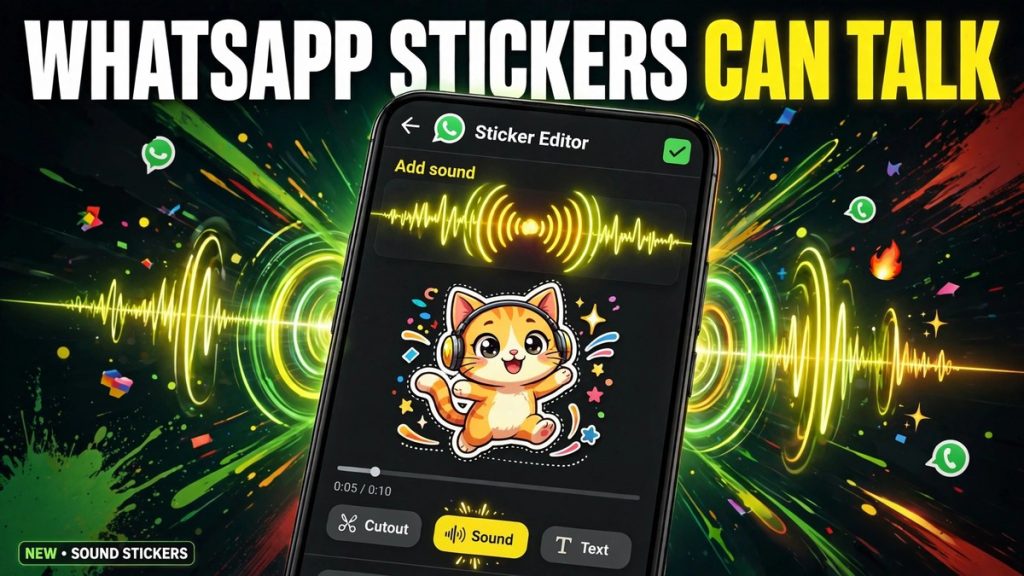
Once the sticker is formed, a new Sound icon appears at the top of the editor. Tap it to open the Add Sound screen, where the audio options are listed. Choose the sound to attach, preview the result, then save the sticker and send it to as many contacts or groups as you like. A small audio icon appears on the finished sticker, marking it as one that carries sound.
- Open WhatsApp and enter any chat.
- Tap the sticker icon, then choose Create Sticker.
- Select a video from the gallery and let WhatsApp turn it into an animated sticker.
- Tap the Sound icon at the top of the editor.
- Open Add Sound and pick an audio source.
- Preview the sticker, save it, and send it.
Four Ways to Add Sound
WhatsApp offers four sources of audio for a sound sticker, giving users room to match the sound to the image.
The first option is the video’s original audio. If the clip already has a sound worth keeping, such as a laugh, a line of dialogue, or background music, it can stay attached to the sticker exactly as recorded.
The second option is a built-in sound effect from WhatsApp’s own collection. These preset effects cover common reactions and moods, and they are the fastest way to give a sticker a voice without recording anything.
The third option is an imported audio file. Users can bring in a track or clip from the phone’s file manager and attach it to the sticker, which opens the door to music, sound bites, and recordings saved on the device.
The fourth option is a personal recording. Users can record their own voice directly in the sticker editor, using the same voice note function found elsewhere in WhatsApp, and attach that recording to the sticker.
Limits on Length and Playback
Sound stickers come with limits on audio length. Audio can run for up to 10 seconds on an image sticker and up to 5 seconds on an animated sticker, so the sound is meant to be a short burst rather than a long clip.
Playback is also deliberately restrained. Sound stickers do not play automatically when they arrive, so they cannot interrupt a conversation or startle the recipient. Instead, the recipient taps the small audio icon on the sticker to hear the sound, and the audio repeats up to three times before stopping. The sound is switched off by default on the receiving side, and the listener chooses when to play it.
WhatsApp applies end-to-end encryption to stickers and their attached audio, the same protection used for messages, calls, and voice notes on the platform.
Who Can Use Sound Stickers Now
For now, Sound Stickers are available only to some beta testers, and access remains limited even among people running the latest beta. The feature is being distributed gradually, so installing the newest beta version does not guarantee that the Sound icon will appear in the editor.
WhatsApp has not announced a date for a full launch to all Android and iPhone users, and has not said whether the feature will reach everyone. Users who want to try it can join the beta programme through Google Play on Android, though places in the programme are limited and the feature may still not appear immediately.
The cautious rollout follows a familiar pattern for WhatsApp, which often tests new features with a small group before widening access. Sound Stickers first surfaced in beta in October, and the current phase, which began in late November, is the widest test so far.
Why Stickers With Sound Matter
Stickers have become one of the most expressive tools in messaging, carrying jokes, reactions, and moods that plain text cannot. Adding sound gives them another layer: a sticker can now laugh, sing, or speak in the sender’s own voice, making a chat feel closer to a conversation.
For creators and businesses, the feature also opens new possibilities, from branded sounds to personal greetings that carry a voice. For ordinary users, the appeal is simpler. A sticker that talks is harder to ignore than one that does not, and in crowded group chats that small difference is often the point.
Frequently Asked Questions
What are WhatsApp Sound Stickers?
Sound Stickers, also called voice stickers, are animated stickers with audio attached. They are made in WhatsApp’s sticker editor and play their sound when the recipient taps the audio icon on the sticker.
How do I make a voice sticker on WhatsApp?
Open a chat, tap the sticker icon, choose Create Sticker, and pick a video from the gallery. WhatsApp converts it into an animated sticker. Then tap the Sound icon, open Add Sound, choose an audio source, preview the result, and save or send the sticker.
What audio can I add to a sticker?
There are four options: the video’s original audio, a built-in sound effect, an audio file imported from the phone, or a voice recording made in the editor.
How long can the audio on a sticker be?
Audio is limited to 10 seconds for an image sticker and 5 seconds for an animated sticker.
Is the Sound Stickers feature available to everyone?
No. It is rolling out gradually to beta testers on Android version 2.26.47.1 and iOS version 26.46.10.70. WhatsApp has not announced a date for a full launch to all users.